How to Scan QR Codes on Your iPhone: A Comprehensive Guide (Update)
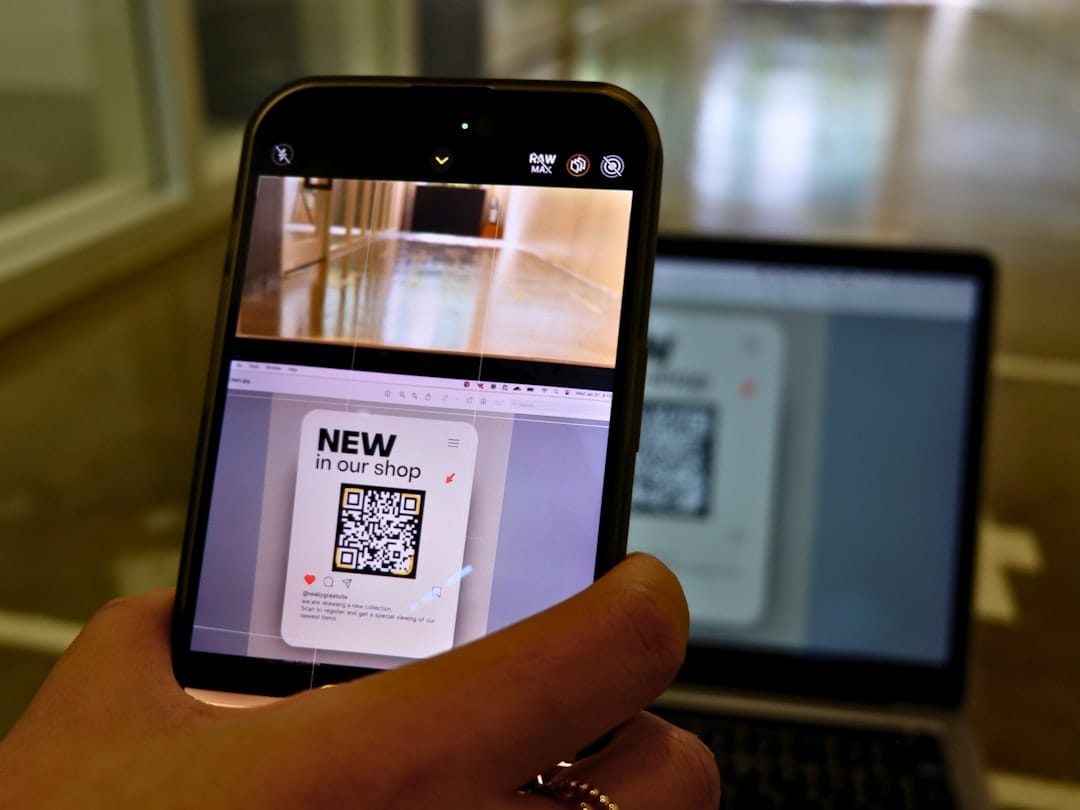
How to Scan QR Codes on Your iPhone: A Comprehensive Guide
In today's digital world, QR codes have become an integral part of our daily interactions. From facilitating contactless payments at stores to providing quick access to online menus in restaurants, these patterned squares are everywhere. Essentially, QR codes are matrix barcodes that contain information leading to websites, apps, or other digital content. This guide will walk you through five efficient ways to scan QR codes using your iPhone, whether they're right in front of you or saved in your Photos app.
Using the iPhone Camera App
Your iPhone's Camera app comes with built-in QR code scanning capabilities, eliminating the need for additional apps and reducing the risk of malware. Here's how you can use it:
- Open the Camera app from the Lock Screen, Home Screen, or Control Center.
- Point the rear camera at the QR code so it appears in the viewfinder.
- If the code contains actionable information like a URL, phone number, or email, your iPhone will recognize it and display a notification.
- Tap the notification to access the link or perform the action associated with the QR code.
Scanning with Control Center
With iOS 12, Apple introduced a QR code scanning shortcut in the Control Center, making it easier and faster to scan QR codes. Here's how to use this feature:
- For iPhones with Face ID, swipe down from the top-right corner to access the Control Center. For iPhones with Touch ID, swipe up from the bottom.
- Tap the QR Code reader icon.
- Point your iPhone towards the QR code you want to scan.
This method is quick and efficient; it can read the code even if it's slightly blurred. If the link doesn't open automatically, you'll see it at the top of the screen—just tap to open it.
If the QR Code shortcut isn't available in your Control Center, you can add it by opening the Settings app, tapping on Control Center, and selecting the green "+" icon next to Code Scanner under the More Controls section.
Using the Google Chrome App
If you have the Google Chrome app installed on your iPhone, you can utilize it to scan QR codes effortlessly. Follow these steps:
- Ensure the Google Chrome app is installed from the App Store.
- Press and hold the Google Chrome app icon on your Home Screen until a quick action menu appears.
- Select "Scan QR Code" from the list and position the QR code within the frame.
- Allow Chrome to access the camera if prompted, and then tap the link to open it.
Scanning QR Codes from Photos
If you have a QR code saved as an image on your iPhone, you can scan it using the Live Text feature, which also recognizes text, phone numbers, and email addresses. Here's how:
- Open the Photos app and locate the image with the QR code.
- Press and hold on the QR code until a quick action menu appears.
- If the QR code contains a URL, select "Open in Safari" to view it.
- If it's a payment link, choose your preferred payment app on the iPhone to proceed with the transaction.
Using Google Photos and Google Lens
If you prefer using the Google Photos app, you can take advantage of Google Lens to scan QR codes saved in your photo library. Here’s how:
- Open the Google Photos app on your iPhone.
- Ensure it has access to your photos.
- Open the image containing the QR code and tap the Google Lens icon at the bottom.
- Google Lens will quickly analyze the QR code and provide options such as opening the link, copying, or sharing it.
Whether you're using an iPhone's built-in features or third-party apps like Google Chrome or Google Photos, scanning QR codes is a breeze. As these codes continue to bridge the gap between physical and digital worlds, knowing how to use these tools effectively can enhance your productivity and streamline your digital interactions.